Plan your content the simple, visual way
Some days an idea appears during a commute and slips away before you can save it. Other times you’re ready to publish but realize your caption draft and image live in two totally different places. A calm content planner board brings everything into one clear space so your content planning feels steady instead of scattered.
Turn your marketing workflow into something clear, flexible, and easy to follow.
It truly lightens the load.
Why content planning often feels overwhelming, and how Borddo makes it easier
Planning content seems simple until the real work begins. A teammate drops a brilliant idea into a chat but no one bookmarks it. A scheduled post gets delayed because the graphic is still on someone’s desktop. On busy weeks you might even find two people unknowingly creating similar drafts because there wasn’t a shared place to check what was in progress.
These moments add friction. They also make the publishing rhythm feel heavier than it needs to.
A calm content planner board brings your ideas, drafts, approvals, and final assets into one visual space your team can rely on. This is where a social media planner kanban truly helps. Everyone can see what’s coming up, what needs edits, and which posts are ready to move forward.
| Before Borddo | After Borddo |
|---|---|
| 🗃️Content scattered across chats and screenshots | 📋One simple marketing board for your whole content flow |
| 📚Unclear ownership and duplicated work | ➡️A clear progression from idea to published post |
| ⚠️Last-minute searches for missing assets | 📅A smoother daily and weekly routine |
See your content plan come to life on a simple board
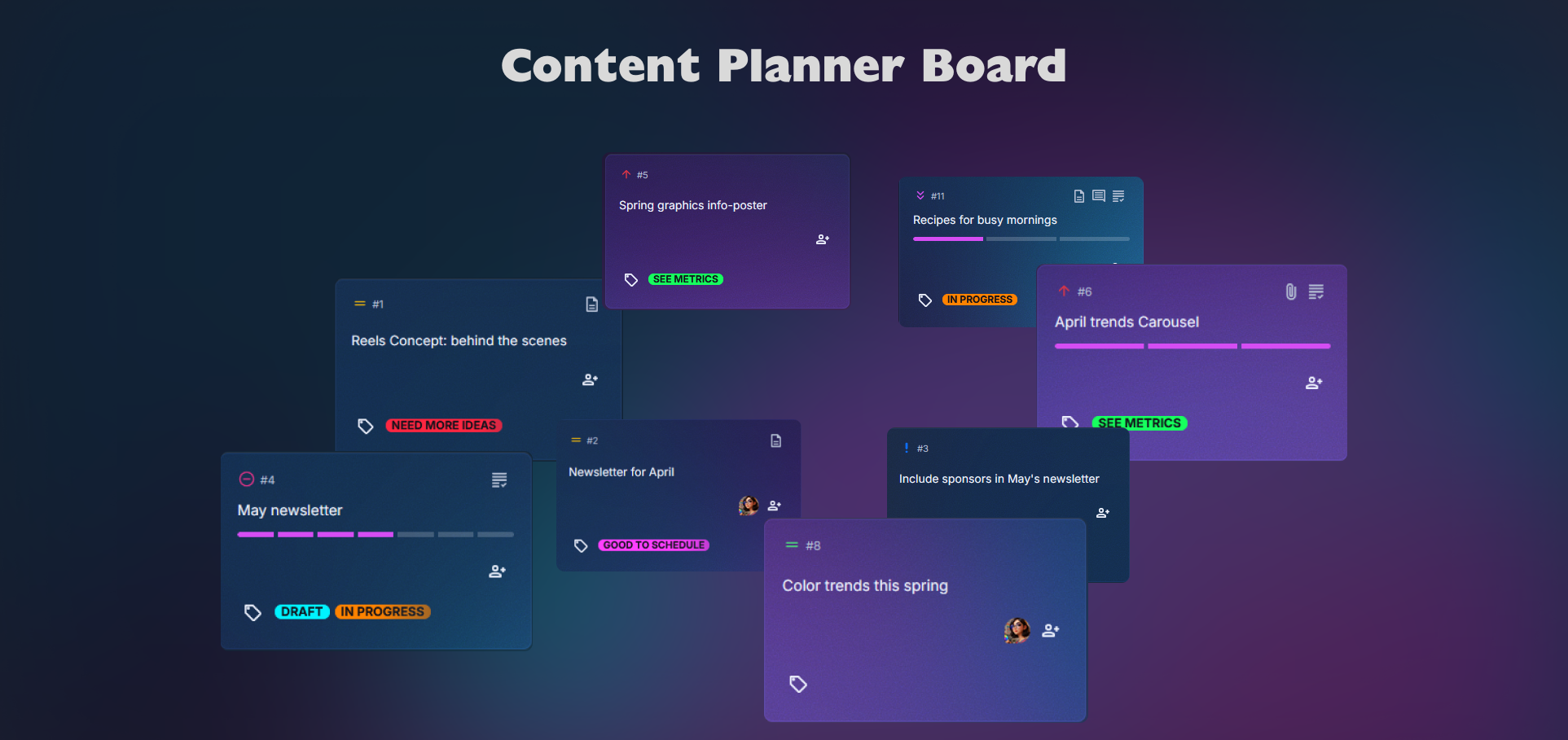
Picture opening a content planner board where every idea and asset finally has a place. Ideas rest in one column. Drafts gather in another. Ready-to-publish posts sit neatly, and scheduled posts move forward as dates approach. The whole board feels calm the moment you glance at it.
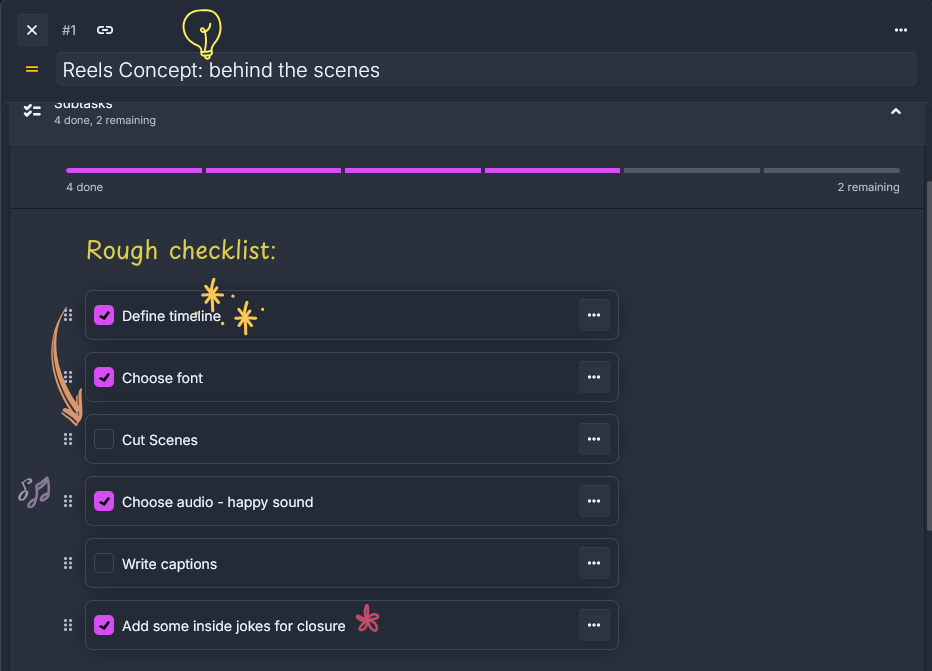
Cards might include “Reel: product tip,” “Blog intro draft,” or “Carousel concept for launch week.” Inside each card, you can add small checklists, upload reference visuals, tag platforms, or store voice notes. These small touches make your marketing board more intuitive.
Some days you’ll drag a draft forward after polishing a caption. Other days you save a sudden idea before hopping into another call. The board keeps up.
Create your content planner board in just a few steps
1. Create a new board
Open Borddo, click “New Board,” and name it Content Planner or Social Media Planner. A clean start helps the whole team recognize it.
2. Add columns that match your content flow
Many teams use Ideas, Drafting, Ready to Publish, Scheduled Posts, and Published. Adjust these anytime as your social media planner kanban evolves.
3. Add cards for your posts and projects
Short titles like “Launch teaser,” “How-to video,” or “Newsletter draft” help everyone skim the marketing board quickly.
4. Add checklists, tags, and attachments
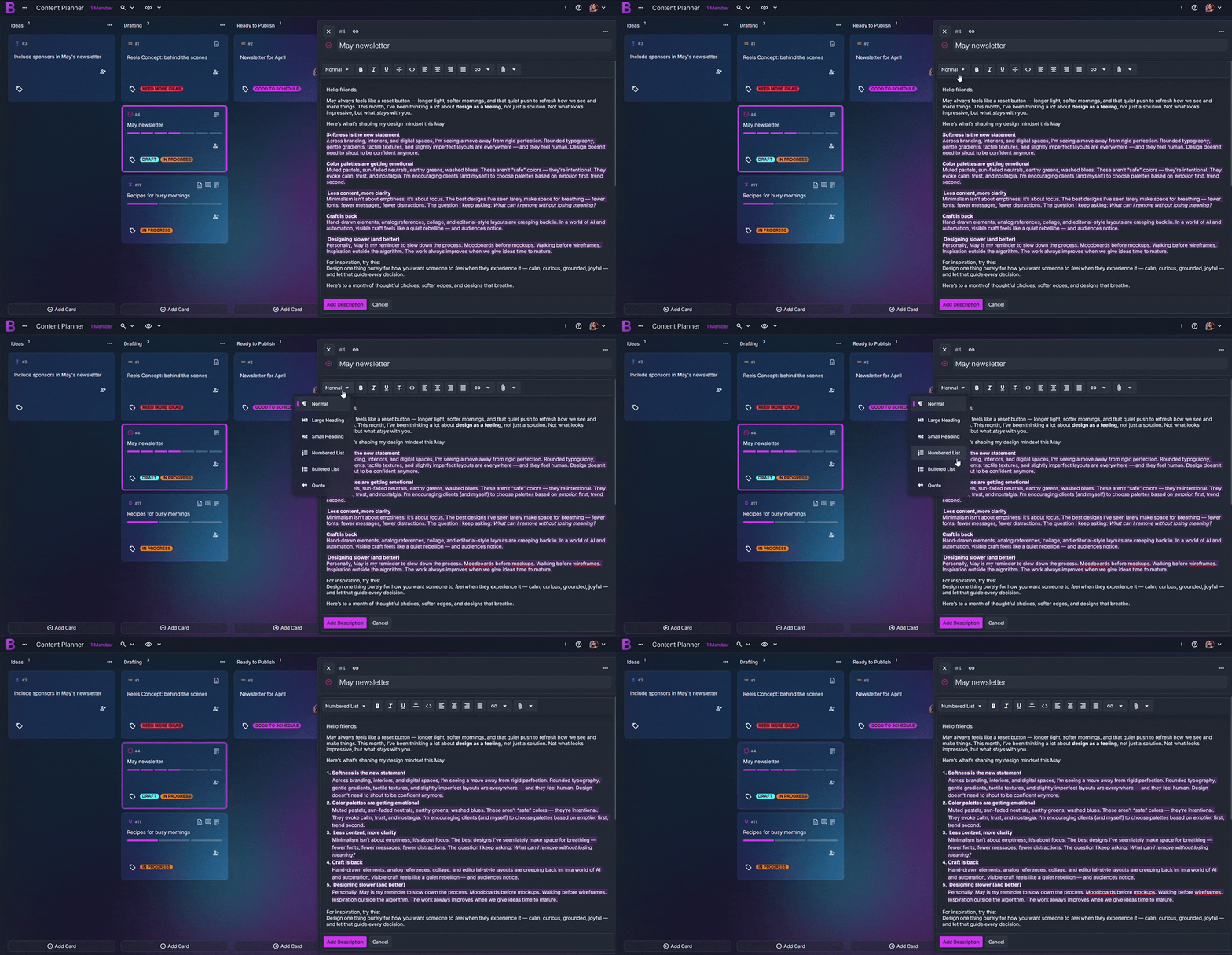
Inside each card, track steps like “write caption” or “upload final image.” Tags highlight platforms and campaigns. Attach thumbnails, script notes, or approved copy so assets stay close to the post.
5. Move things around as plans change
Shift drafts forward when they’re ready or pull them back if revisions pop up. The board adapts in seconds.
Stay in sync with your team or clients
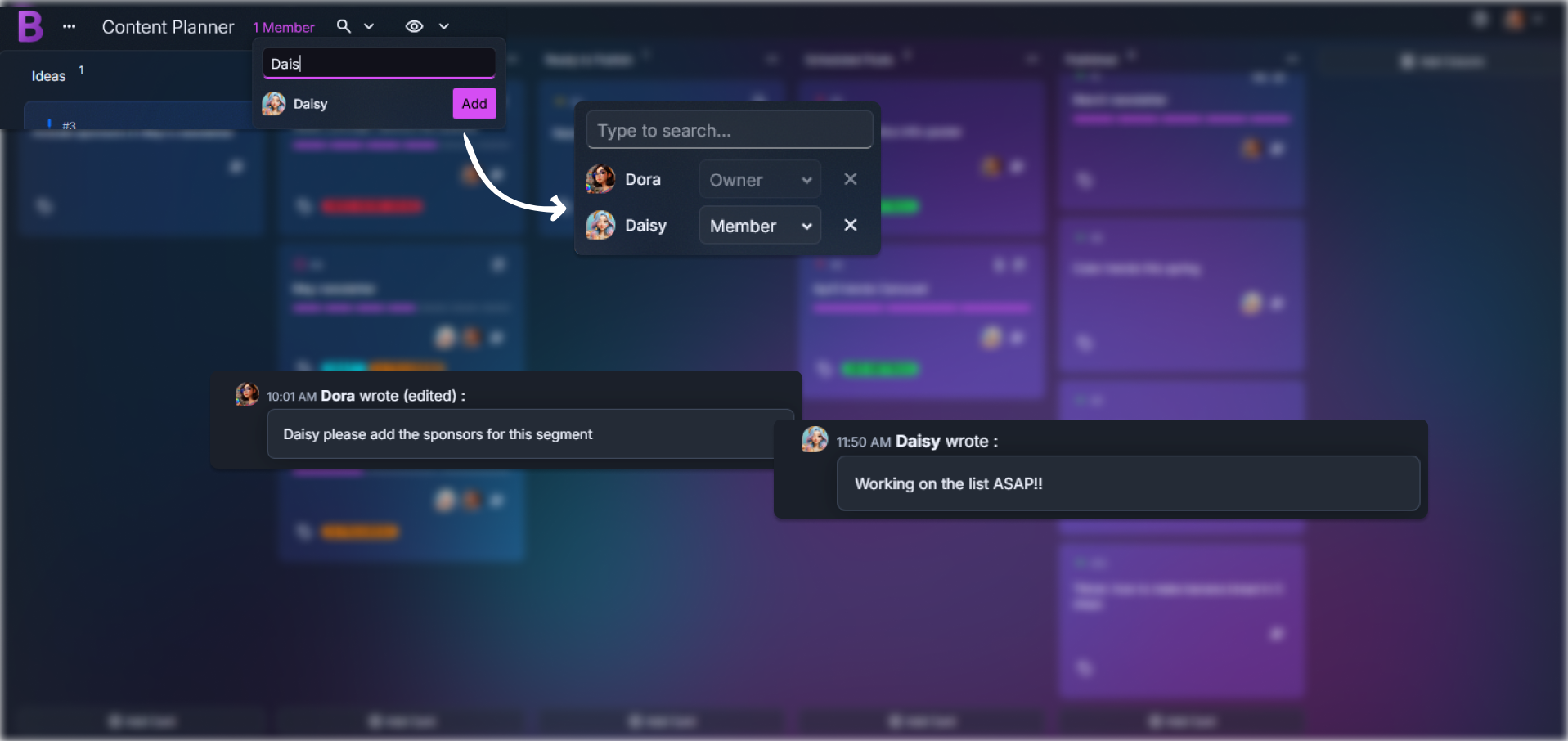
Sharing your content planner board gives everyone a clear, shared reference point. You can invite collaborators so updates appear instantly when someone updates a caption or uploads a new asset. Comments make it easy to leave thoughts like “Try a shorter hook?” or “Uploaded a new image for Slide 2.”
It reduces the quiet friction that shows up during busy content cycles. Instead of wondering if tomorrow’s post is scheduled, the board shows you immediately. Even that familiar moment when two people brainstorm the same idea starts to fade because visibility is clearer.
- Share your board
- Real-time updates
- Quick notes and adjustments
- A shared pipeline for approvals
- Less confusion during publishing days
Tips to make your content planning even easier
Add a small “Assets Needed” checklist.
It keeps graphics, captions, and supporting materials easy to track.
Use color-coded tags for platforms and campaigns.
It helps you quickly scan what belongs on Instagram, TikTok, LinkedIn, or your blog.Attach reference examples to keep branding consistent.
A quick visual cue makes the marketing board feel more grounded.Create a “Campaign Ideas” column.
It gives future concepts a place to live without crowding current posts.Save alternate caption ideas inside the description.
You can revisit earlier drafts and compare options when polishing final copy.
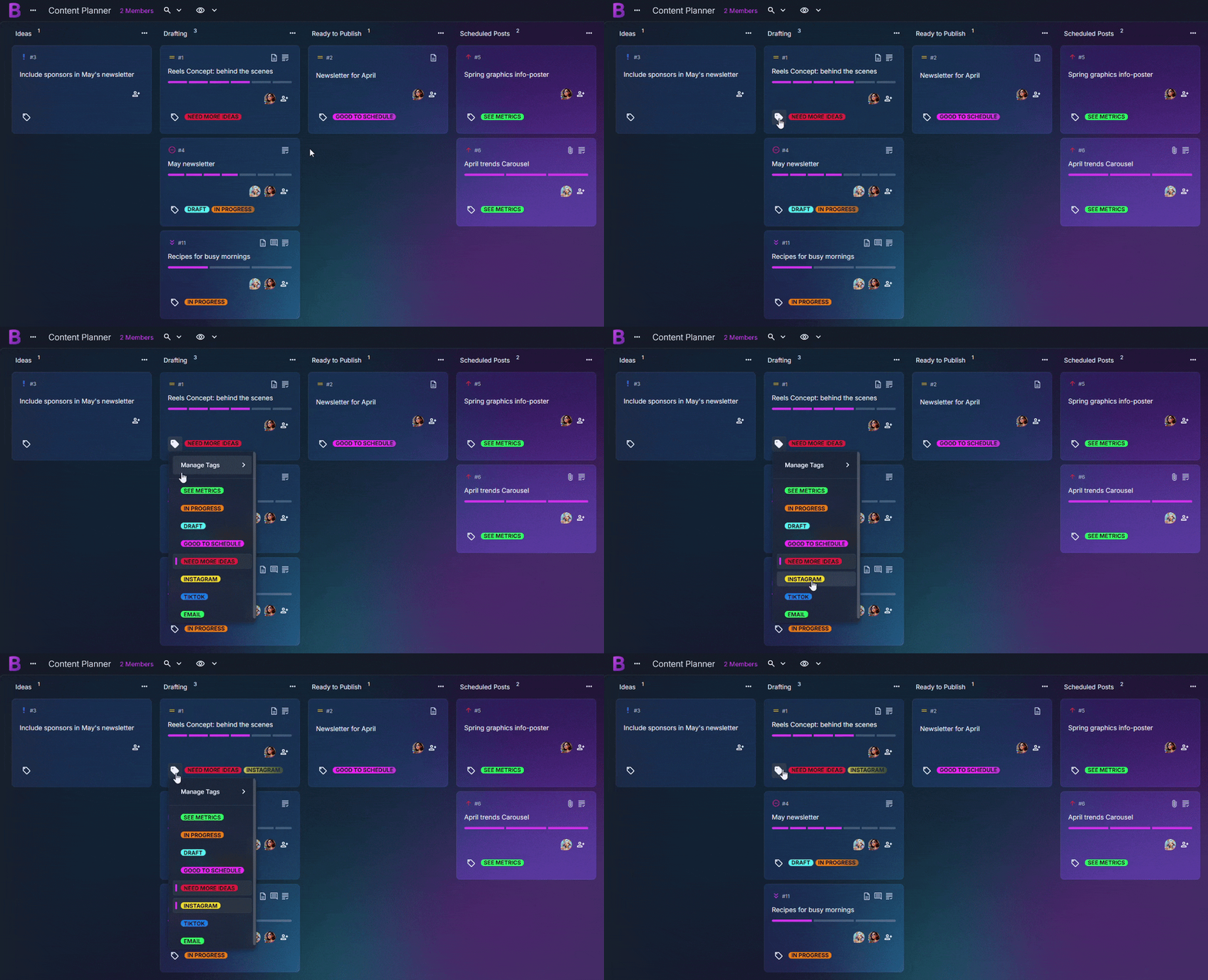
A calmer way to manage your content workflow
Teams and creators often feel relieved once everything sits inside one content planner board. It eases the mental load of remembering which post is due next or which asset still needs attention. One glance can settle the entire day.
Imagine checking your board in the morning and instantly spotting the draft that needs its final graphic. Or picture sliding a post into Published after a full week of work and taking a short breath of relief. These tiny moments matter.
Whether you’re managing campaigns, personal channels, or client work, the board gives your content a dependable rhythm.
Start your content planner board today
Bring your ideas, drafts, and scheduled posts into one simple system. It takes only a moment to begin, and you’ll have a marketing board that supports every part of your content workflow.
Start Your Content Calendar Board
Frequently Asked Questions
Yes. It’s excellent for organizing ideas, drafts, approvals, and scheduled posts in one clean visual layout.
No. Just create a new board, set up a few simple columns, and begin placing cards for each post.
Absolutely. Cards support rich text, attachments, and subtasks so everything stays close to the work.
If you're on a collaborative plan, you can share the board so others can comment, make updates, or move posts through your workflow.
Yes. Teams can start with a 30-day free trial for up to ten members. This lets you explore shared boards, roles, and collaboration features before choosing a plan.