Daily Standup Board Template for Today’s Work
Before the 10:00 check-in, you just need today’s truth..
What’s on deck, what’s moving, what’s blocked, what’s done.
Borddo gives you a lightweight daily task tracker board that feels like a clean daily standup view, not a full-time PM system. Your team can run a simple daily kanban for teams in minutes, then reuse it every morning.
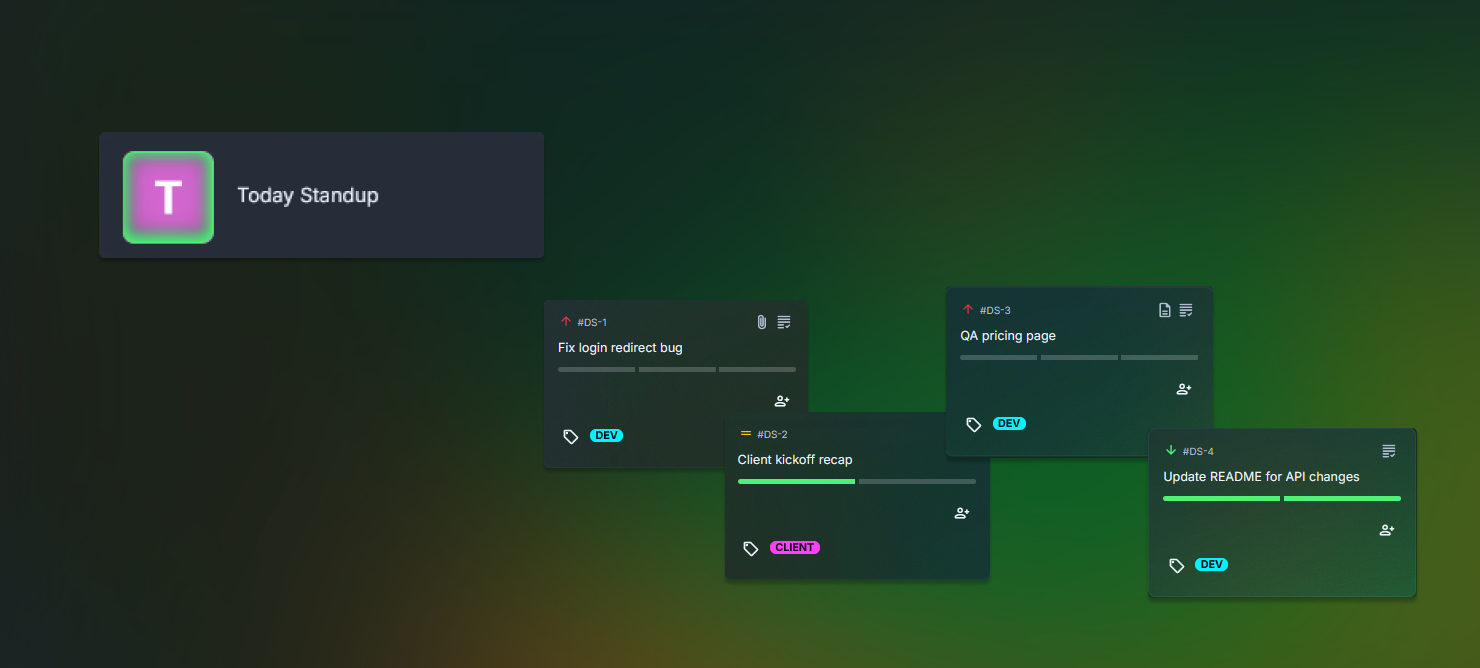
Why daily standups get messy fast, and how this board fixes it
Daily standup is supposed to be quick. Then the call starts and someone asks for updates, and you’re searching.
Slack thread. Half-finished doc. A tab you forgot you even opened.
Two frustrations show up in this exact “today-only” workflow:
First, In Progress becomes a mystery pile. People are doing work, but the board does not say what’s truly active.
Second, blockers surface late. A task sounds fine until someone admits they are waiting on a client file or a teammate’s review.
If you’ve ever said, “Hold on, I’m pulling it up,” you’re not alone.
A simple team task board helps because it turns standup into a visual roll call. Cards move as you talk. Blocked work stays visible. Done gets its moment, then you can collapse it and move on.
| Before Borddo | After Borddo |
|---|---|
| 🔍 Standup starts with searching for “what’s today” | 📋 One daily standup board template you reuse every morning |
| ⏳ Blocked items get mentioned at the end, when it’s too late to fix them | 🚦 A daily kanban for teams that makes blockers obvious and easy to explain |
| ⚖️ The tool feels heavier than the work | ✅ A daily task tracker board where “today” stays small and realistic |
See your daily standup board template come to life on a simple board
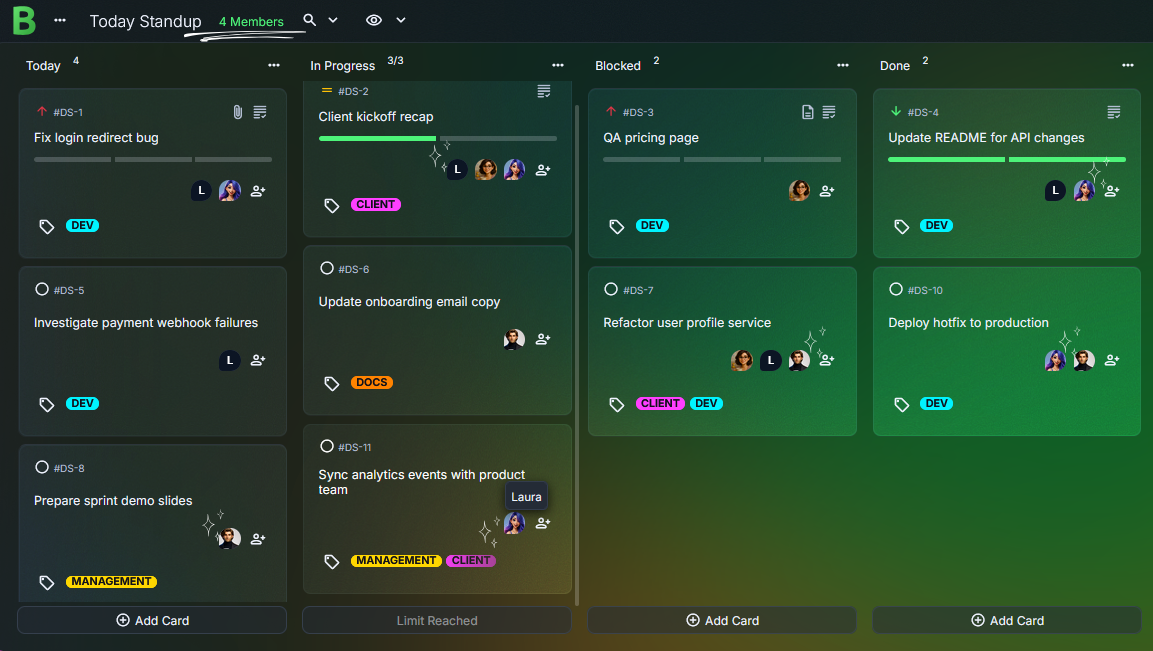
Open the board and you see four lanes: Today, In Progress, Blocked, Done.
That’s the whole view.
Today is where you put the work you actually plan to touch before the next check-in. Keep titles readable out loud, like “QA the signup flow,” “Client edits: homepage hero,” or “Review PR DS-18.”
In Progress is what someone is actively working on right now. A small WIP limit keeps it honest.
Blocked is where work goes the moment it can’t move, with one plain sentence about why.
Done is for quick wins. You can collapse it after standup so Today stays front and center.
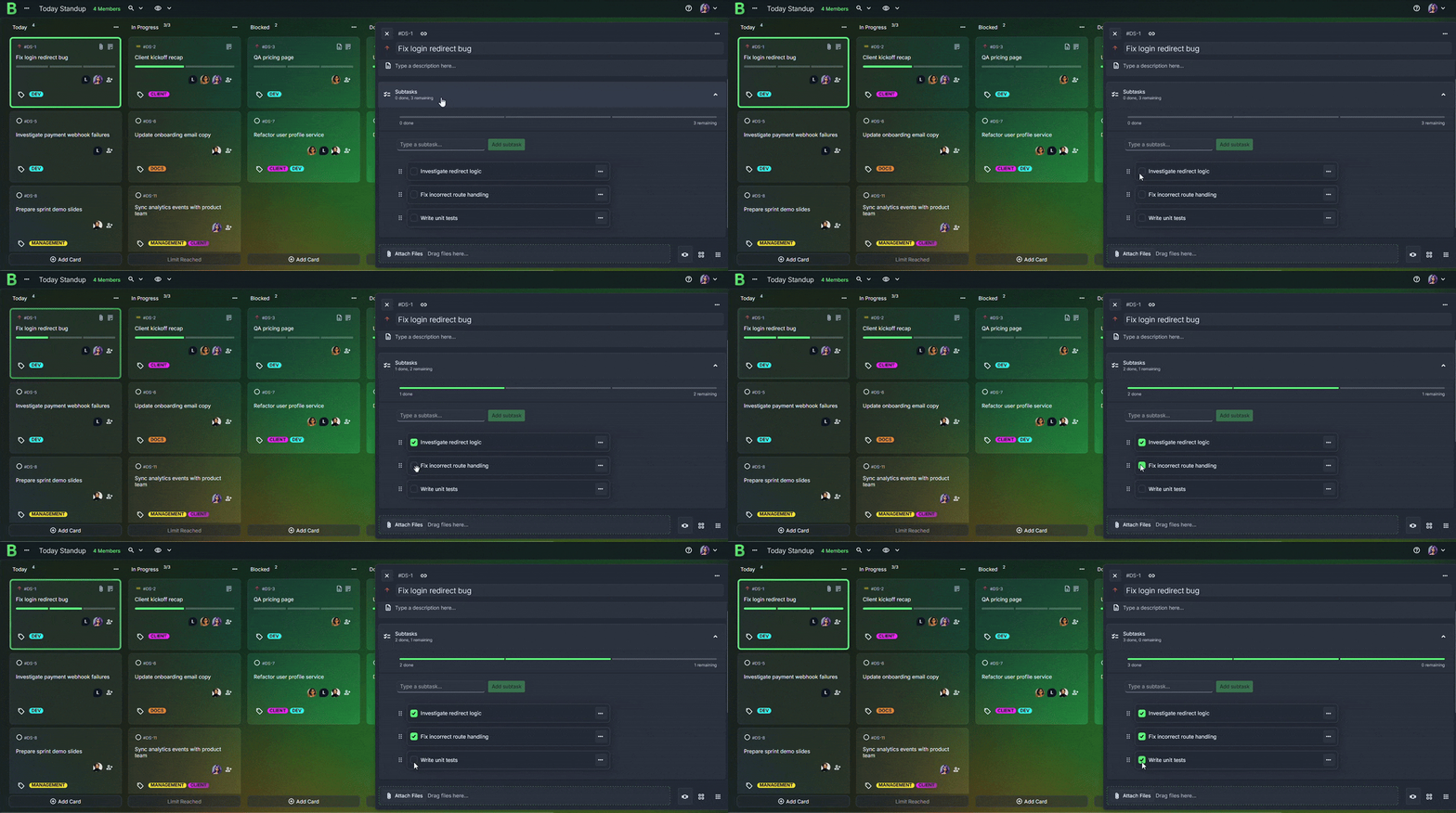
Inside each card, keep the details practical. Add 2–4 subtasks so the next step is obvious. Tag it (Client, Dev, Design). Set a priority if it needs attention today. Attach a screenshot when it saves a back-and-forth. Simple.
Example Setup:
- Columns: Today, In Progress, Blocked, Done
- Cards: “Bug: login redirect,” “Client kickoff recap,” “QA pricing page”
- Tags: Client, Dev, Design, Quick Fix
- Subtasks: Reproduce, Fix, Retest, Merge
- Attachments: One screenshot on the bug card
Create your daily standup board in just a few steps
1. Create a new board
Name it something you will spot fast, like “Today Standup” or “Daily Check In.”
Keep it short.
2. Add columns that match the standup flow
Create four columns: Today, In Progress, Blocked, Done.
Order them left to right the same way you speak updates.
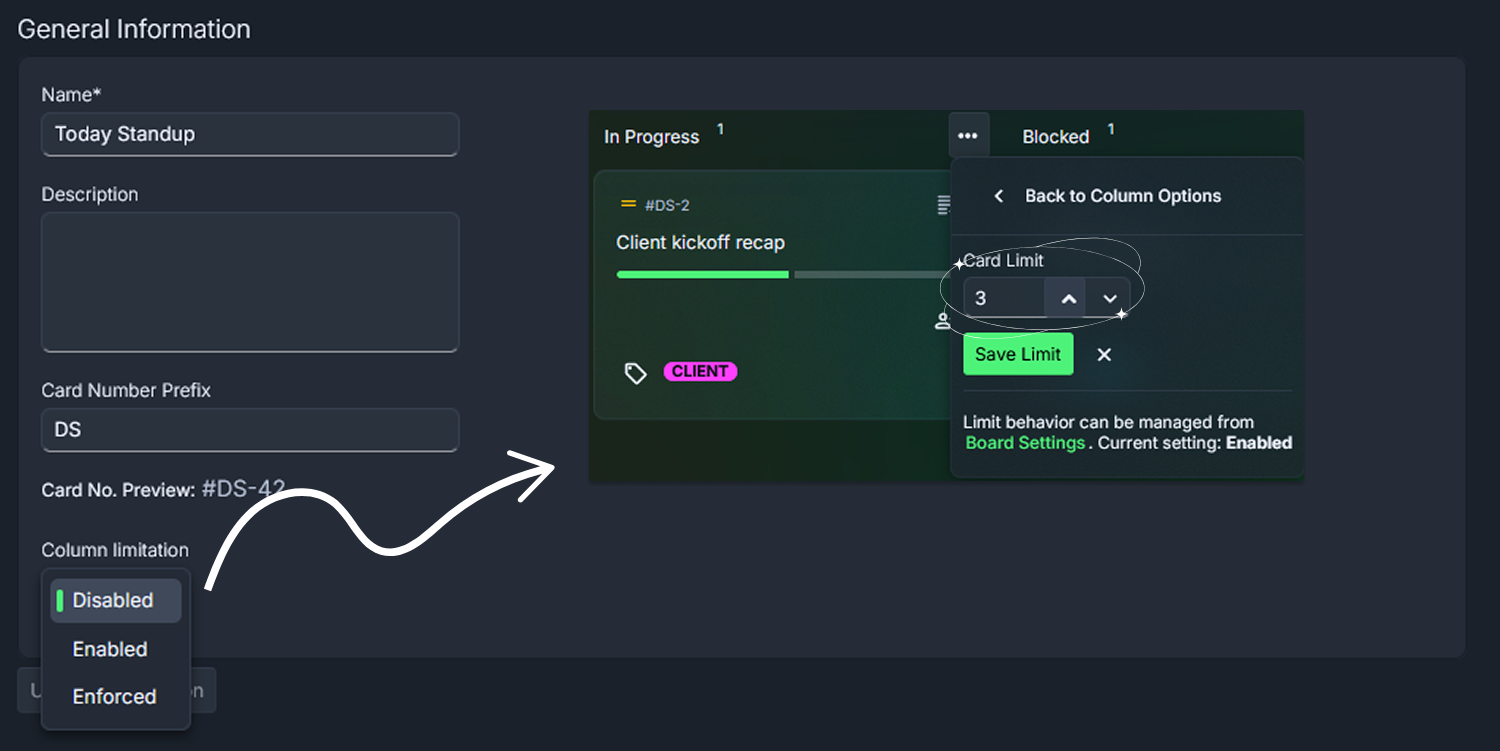
3. Add a WIP limit to “In Progress”
Make one card per project or product batch. Titles like “DIY pegboard wall” or “Felt ornaments x12” are easy to skim.
4. Add cards for today’s work
Drop in the tasks you expect to mention in standup.
Use clear titles, like “Prep client demo notes” or “Fix checkout error on staging.”
5. Add the details that make standup faster
Set a card prefix like DS so you get easy task numbers (DS-12, DS-13).
Add a few subtasks and a tag. If something is stuck, move it to Blocked and leave one short comment like “Waiting on copy approval.”
Stay in sync without extra confusion
Here’s a common moment: standup ends, and ten minutes later someone asks, “Wait, who’s taking the client edits?”
On this team task board, the answer is already on the card. Add assignees so ownership is obvious, especially when two people are pairing. If something is blocked, the note sits right there too.
That little clarity reduces friction in a way you can feel.
It’s calmer.
Tips that make a daily standup board work better
Put a gentle WIP limit on “In Progress.”
Try a small number, like 3–5 cards total for the team. Standup stays calm when “in progress” actually means “being worked on.”Use card numbers as your standup shorthand.
Add a short prefix like “DS” so updates sound like, “DS-12 is blocked,” not “the task from yesterday with the screenshot somewhere.”Make “Blocked” one clear tag, and add one clear comment.
In the comment, write what you’re waiting on in plain language. Example: “Need final copy for the hero line from Sam.”Collapse “Done” after the check-in.
Keep it today-only. When the win matters, expand it and enjoy the tidy stack.Save a quick filter for your daily kanban for teams.
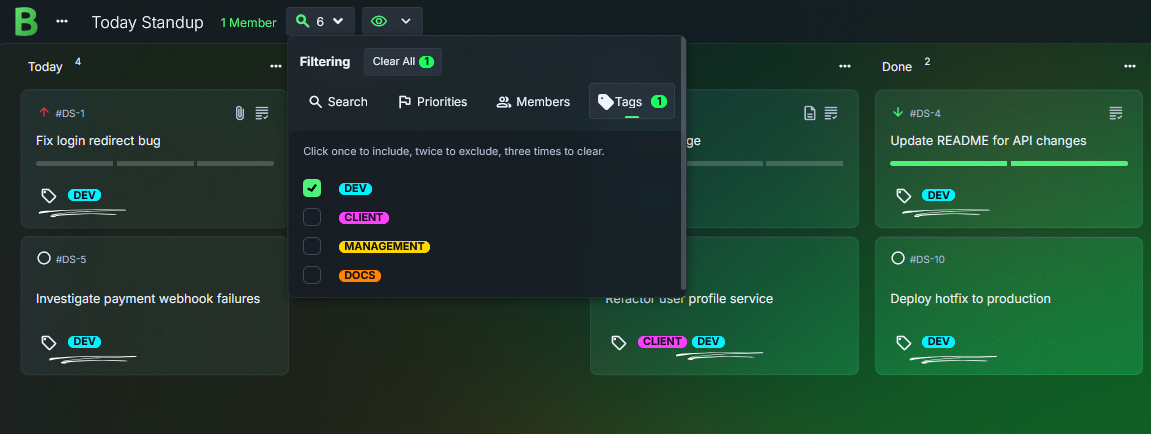
Filter to show just “Today,” “In Progress,” and “Blocked,” then narrow by assignee or priority when you need a fast turn-by-turn view.
Why teams like Borddo for a “today-only” standup view
There’s relief in tracking just today.
You are not managing the entire sprint at 9:59 a.m.
Picture this: someone joins standup and says, “I’m stuck until I get the final assets.”
You move the card into Blocked, add one short comment, and the whole team sees what’s needed. No extra thread.
That’s why this daily standup board template works so well for small teams and agencies. It keeps the update lightweight, but still specific. A daily task tracker board should feel easy to maintain. Borddo does.
Start your daily standup board today
Set up the four columns once.
Tomorrow morning, drop in today’s few real tasks and start the call.
When work shifts, move a card. When something stalls, mark it Blocked with one clear note.
That’s enough.
Build Your Daily Standup Board Template
Frequently Asked Questions
It’s a daily standup view first. You get a lightweight team task board for Today, In Progress, Blocked, and Done — without extra layers you won’t use in a five-minute check-in.
The rule is simple: Today only holds what you plan to touch today. When you keep Today small and collapse Done, the board stays truly daily instead of turning into a growing backlog.
Yes. Put a WIP limit on In Progress. It’s a gentle guardrail that keeps standup honest and helps the team finish work instead of juggling it.
Anything that can’t move without something outside your control. Add one short sentence like “Waiting on client images” or “Need review from Sam,” then attach the link or screenshot that explains it fast.
Borddo doesn’t provide pre-made templates. The good news is this one is easy to build yourself, then reuse every morning as your standup setup.
Yes. The Free plan is for a solo user and does not include assignees. If you want shared standups with assignees and full collaboration, you’ll want a Team plan.