Event Planning Board for Small Teams: Plan Workshops and Webinars Without the Scramble
Plan your small events the simple, visual way
A speaker finally sends their bio, but now you can’t find the final headshot.
Then someone asks, “Are we using the new registration link or the old one?”
Borddo is a simple event organizer board where speakers, promotion, tasks, and logistics sit on clear cards you can drag across columns. It’s a practical workshop planning kanban for small teams, communities, coaches, and education businesses.
Less chasing. More hosting.
Why small event planning often feels overwhelming, and how Borddo makes it easier
Planning a workshop or webinar sounds simple until real life happens. A speaker changes their session title after you’ve already drafted the promo post. Someone says they’ll handle the Zoom setup, but the final link is still in a private message thread.
It adds stress.
Two frustrations show up again and again with small events. First, details scatter across email, chat, and sticky notes. Second, day-of questions multiply fast, especially when helpers or volunteers are involved. You end up re-sending the same “Where’s the link?” message and hoping nothing got missed.
Borddo brings everything into one calm event planning board your group can actually follow. Cards hold the speaker bio, the headshot, the slide link, and the checklist for the tech rehearsal. Columns show what’s confirmed and what’s still waiting.
| Before Borddo | After Borddo |
|---|---|
| 🗂️ The speaker’s name is in chat, the bio is in a doc, and the headshot is “somewhere” | 📌 One workshop planning kanban you can scan in seconds |
| 🌪️ Promo steps get started, then drift when other tasks pop up | 🧩 Clear cards for speakers, promotion, and run-of-show basics |
| ⏰ Logistics go quiet until the morning of the meetup | 😌 Fewer repeat questions right before you go live |
See your small event plan come to life on a simple board
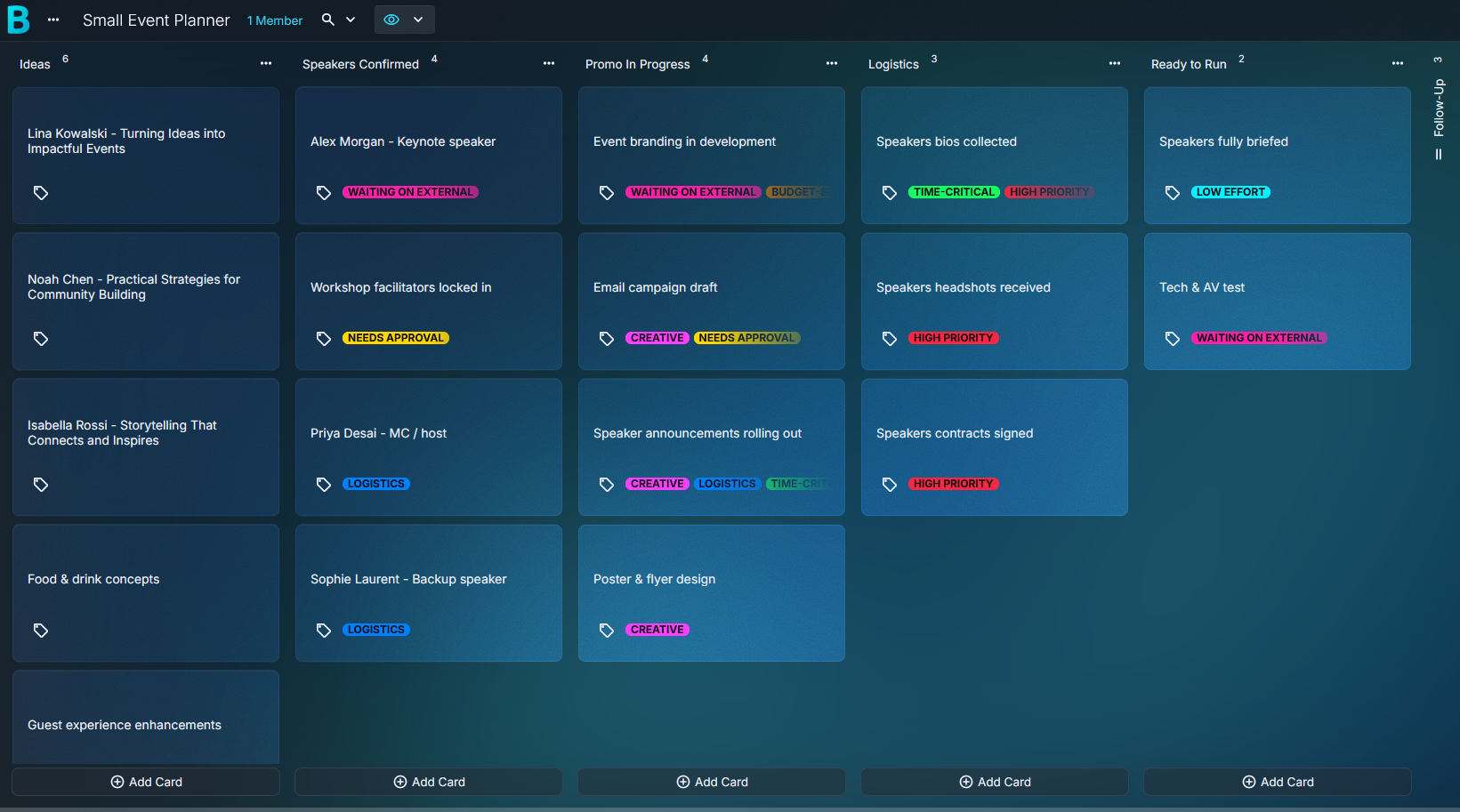
Start with a board named for the event, like “Friday Lunch & Learn” or “Workshop: Intro Session.” The columns act like your event map. Speakers on one lane. Promo on another. Logistics stays visible instead of hiding in someone’s memory.
It’s easy to read.
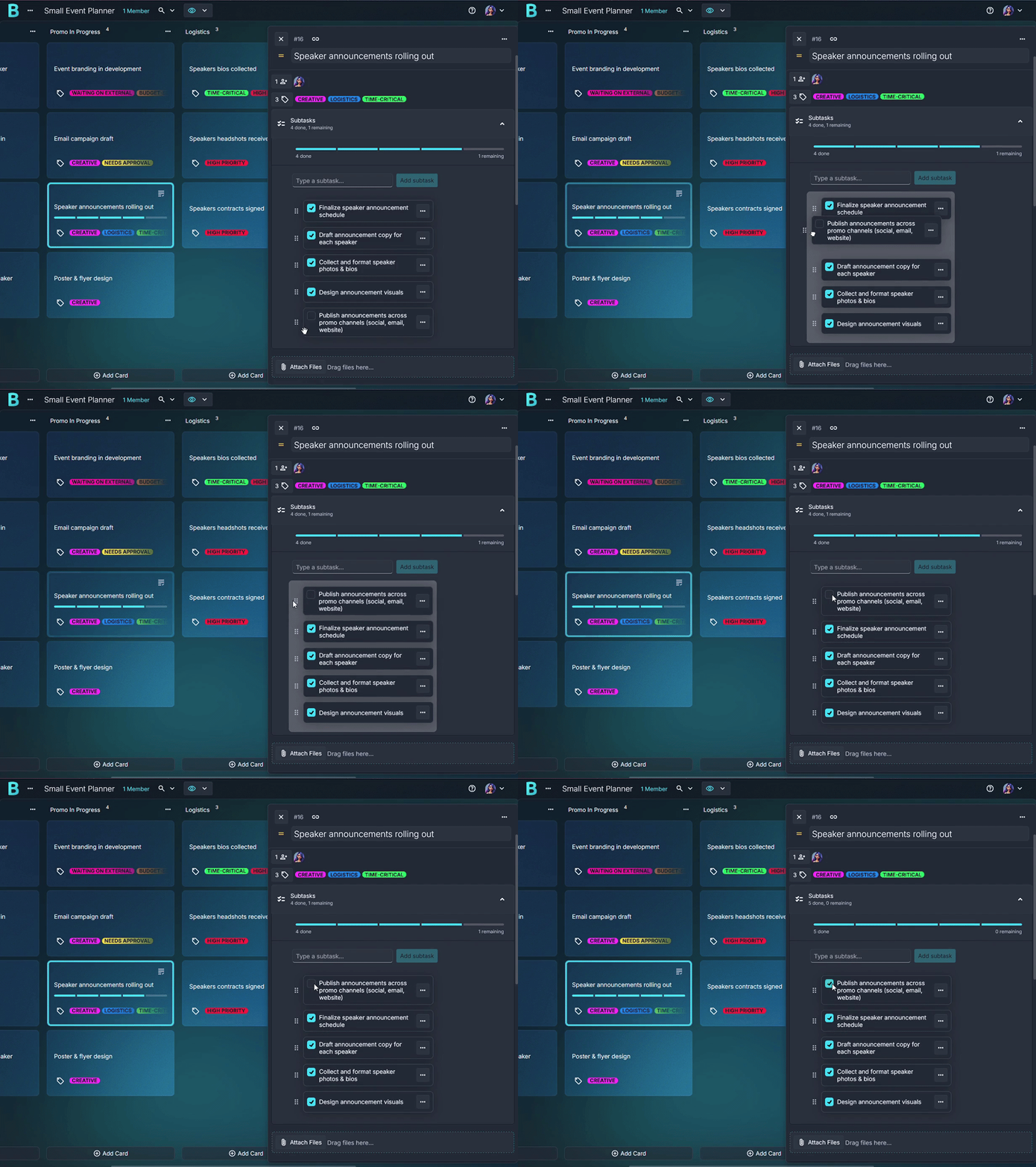
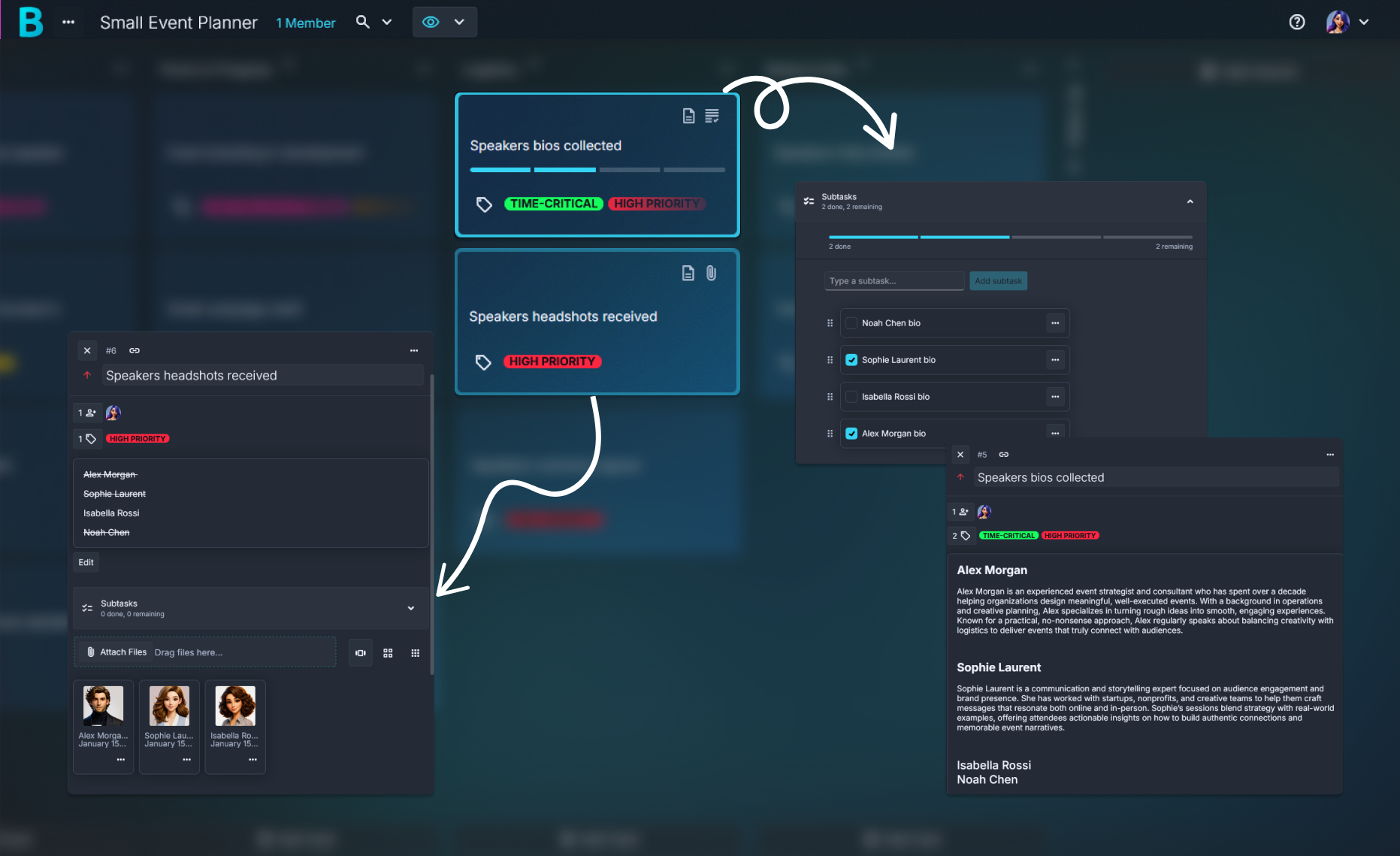
Each speaker gets a card. Inside, keep the practical things together: short bio, preferred title, pronunciation note for the intro, and the slide link. Add subtasks like “Collect headshot (square),” “Confirm timezone in title,” and “Schedule tech check.” Attach the headshot file so it’s ready when you’re posting the event graphic.
Promotion becomes simple when it’s card-based. Put “Announcement post,” “24-hour reminder,” and “1-hour reminder” on separate cards, then move them as they’re drafted and published. When a link changes, you update one place. That’s it.
Example Setup:
- Columns: Ideas, Speakers Confirmed, Promo In Progress, Logistics, Ready to Run, Follow-Up (collapsed)
- Cards: “Speaker assets,” “Landing page copy,” “Tech check checklist,” “Community reminder post,” “Room setup notes,” “Replay + feedback email”
- Tags: Speaker, Promo, Logistics, Tech, Follow-Up
- Subtasks: speaker prep steps, tech rehearsal steps, promo steps
- Attachments: headshot, slide deck, venue map, “Zoom link” doc
Create your event planning board in just a few steps
1. Create a new board
Name it after the actual event, like “December Webinar” or “Saturday Meetup.”
Keep it short.
2. Add columns that match your flow
Try: Ideas → Speakers Confirmed → Promo In Progress → Logistics → Ready to Run → Follow-Up.
If Follow-Up distracts you, collapse that column until after the event.
3. Add a WIP limit to “In Progress”
Make one card per project or product batch. Titles like “DIY pegboard wall” or “Felt ornaments x12” are easy to skim.
4. Add subtasks, tags, comments, and attachments
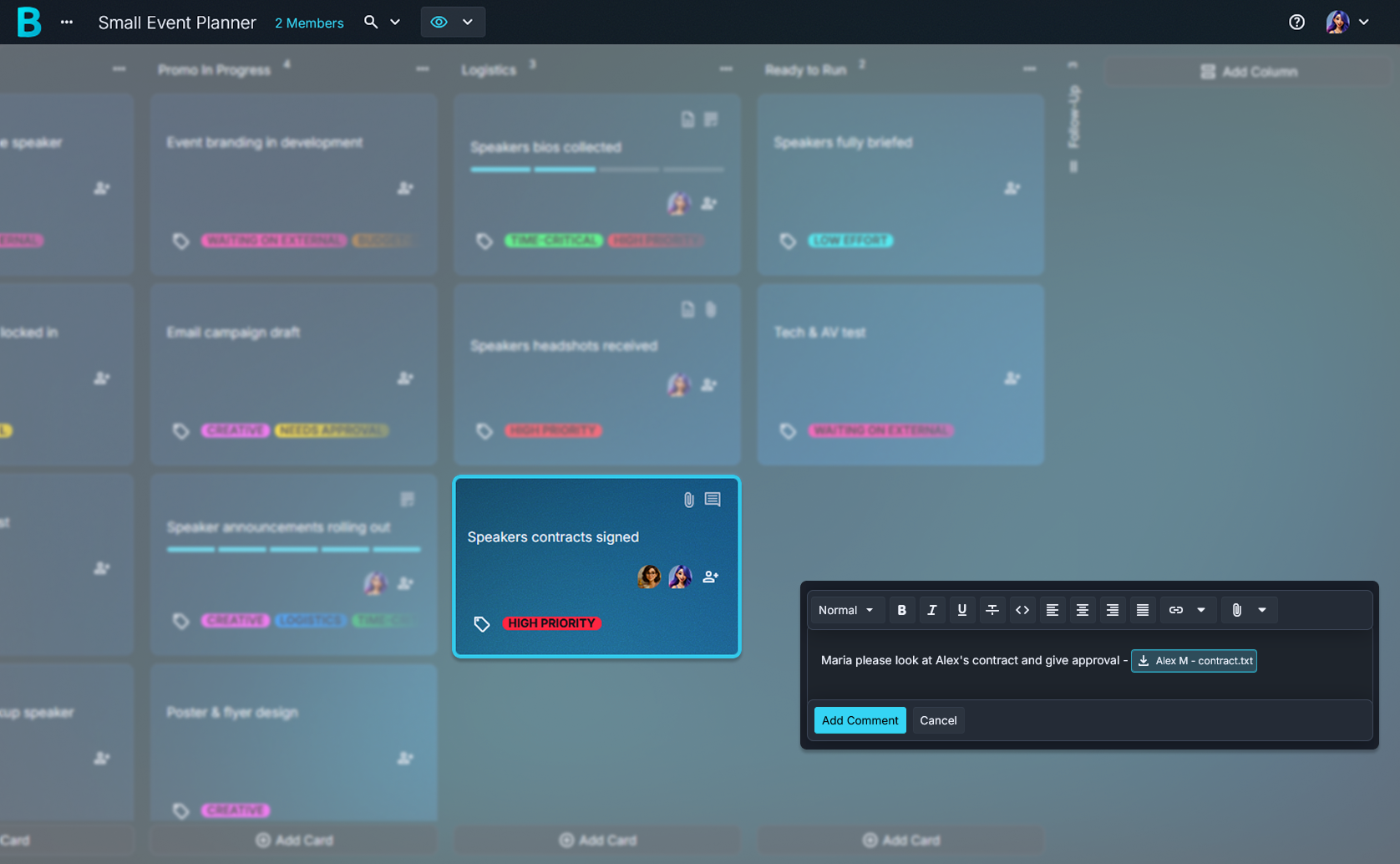
Subtasks work well for “tech check” steps, like mic test, screen share, recording setting, and backup host. Tags help you quickly separate Promo from Tech. Comments are perfect for quick confirmations, like “Final title approved” or “Headshot received.”
5. Move cards as plans change
Shift a speaker card back if the slide deck isn’t in yet. Pull a promo card forward once the graphic is ready.
It stays honest.
Stay in sync with your team
This is where the confusion usually fades. When everyone can see the same event planning board, you don’t have to keep re-explaining the plan. Ownership feels clearer, even with a small group of helpers.
That’s a relief.
Here’s a familiar moment: it’s 10 minutes before the webinar and your co-host asks, “Did we send the reminder email?” With Borddo, you can glance at the promo card and know right away. If it’s still in progress, it’s obvious. If it’s done, it’s done.
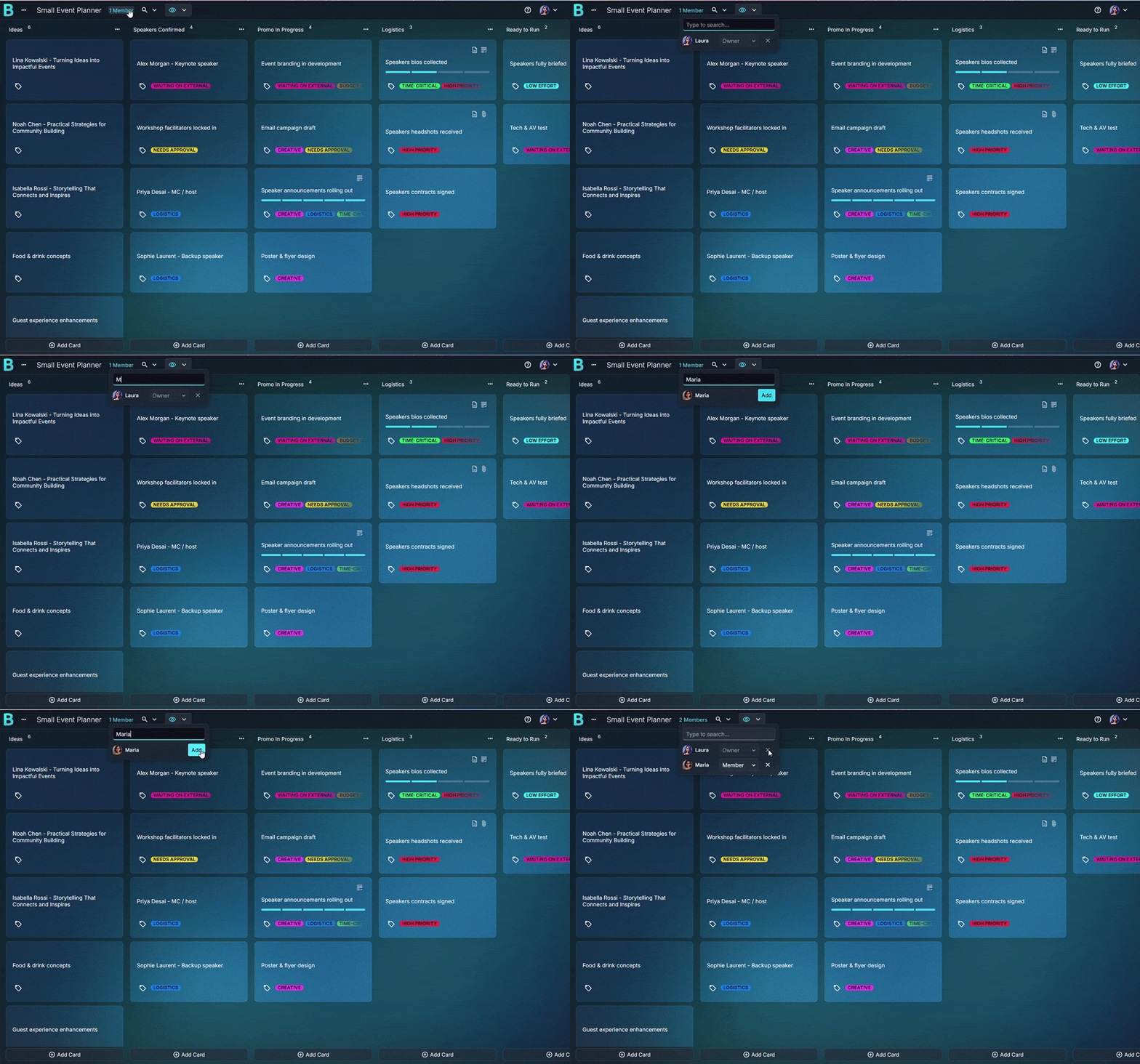
- Invite your team to the board
- Add multiple assignees when two people share a task
- Use comments to confirm details like “door code,” “speaker intro notes,” or “final link”
- Keep the day-of lane small so it stays calm
Tips that make a daily standup board work better
Create a “Run of Show” card early.”
Keep the agenda, timings, and speaker order in one place. Add subtasks like “Open room,” “Welcome slide,” and “Q&A wrap.”Make “Event Day” a small, strict column.
Make “Event Day” a small, strict column.
Only move tasks there if they truly matter today. It keeps your day-of view calm.Try a gentle WIP limit on “In Prep.”
When everything is “in progress,” nothing finishes. A small cap nudges you to close loops.Use a simple card prefix for fast references.
A prefix like “EV” gives you EV-12, EV-13, and so on. It’s handy when someone asks, “Which card has the venue map?”Filter by tag when you’re in a specific mode.
Promo day? Show only Promo cards. Logistics walk-through? Filter to Logistics and handle the practical stuff in one pass.
Less mental switching.
A calmer way to manage workshops, webinars, and meetups
A good event feels warm and welcoming. Planning it can feel the opposite. Borddo helps by giving you one simple event organizer board where the tiny details don’t slip, like the speaker’s last-minute slide link or the correct timezone wording.
You’ll feel calmer.
Picture this: attendees are joining, you’re greeting people, and a speaker messages, “Can you resend the slide link?” You open their card, copy the link, and keep going. No rummaging through old threads.
Start your event planning board today
Build your board once, then use it as your go-to setup for every workshop, webinar, or meetup. Keep it simple, keep it visible, and move cards as you go.
You’ve got this.
Start Your Event Planning Board
Frequently Asked Questions
Yes. Borddo works well as an event planning board when you want a clear flow for speakers, promotion, and logistics. You can quickly see what’s confirmed and what’s still waiting on a reply.
Borddo doesn’t include pre-made templates. The good news is you can build your own webinar planning template as a board in minutes, then reuse the same column setup for your next session.
Use one card per speaker. Add a short bio, a pronunciation note for your intro, and subtasks for headshot, slide link, and tech check. Attach the headshot so it’s ready when you’re posting promo.
Split promo into event-timed cards like “Announcement,” “24-hour reminder,” and “1-hour reminder.” Move them across the board as they’re drafted and posted so you can instantly see what’s still pending.
Yes. On team plans you can invite others, see real-time updates, and assign multiple people to a card. This works well when one person owns logistics and another handles promotion.
No. Borddo focuses on a simple visual board with columns, cards, tags, priorities, and subtasks. Many teams use clear column stages and priorities to make the next step obvious.